
Google NotebookLM has become a useful AI-powered research and learning tool for people who want to understand documents, organize information, and study more efficiently. Instead of repeatedly reading lengthy PDFs, research papers, or lecture notes, you can use it to ask questions about your materials and create summaries, study resources, and audio discussions.
One important update for 2026: Google announced that NotebookLM is being renamed Gemini Notebook. The product continues to focus on research and learning, with connections to Google’s wider AI ecosystem.
blog.google
Whether you are a student, teacher, researcher, or content creator, this guide explains what Google NotebookLM does, how to use it, and where its limitations matter.
1. What Is Google NotebookLM?
Google NotebookLM is an AI-powered research assistant that helps you understand, summarize, and explore information from sources you provide. You can upload documents, add supported web pages and YouTube videos, ask questions about your materials, and generate learning resources. Its answers can include citations that help you check the original source rather than relying entirely on an AI-generated response.
Gemini Notebook Help+1
Think of it as a digital study notebook that can read your reference materials and help you find relevant information.
For example, suppose you have five PDFs for a college examination. Instead of searching through every document manually, you can ask the tool to summarize important topics, explain difficult concepts, and create practice questions based on your uploaded material.
You can start with the official Gemini Notebook website.
2. How Does NotebookLM Work?
NotebookLM works by using the sources associated with your notebook as the foundation for its answers.
Here is the basic process:
- Add sources: Upload PDFs, documents, notes, or supported links.
- Analyze information: The AI processes the imported material to identify relevant information.
- Ask questions: Enter a question or instruction in the chat panel.
- Review the answer: Read the response and inspect its citations to verify important claims.
- Create learning resources: Use available tools to generate summaries, audio discussions, quizzes, or other supported outputs.
For example, if you upload a document about machine learning, you might ask:
Explain supervised learning in simple English. Give three practical examples and identify the relevant sections in my sources.
NotebookLM can use the uploaded material to create a focused explanation and direct you to supporting passages.
The important distinction: NotebookLM’s source-grounded chat is designed to answer from your selected notebook sources. It is not automatically a guarantee that every answer is complete or correct. Verify important details, particularly when working with academic, financial, legal, or technical information.
Gemini Notebook Help+1
3. Key Google NotebookLM Features
Google NotebookLM offers several features for research, studying, and working with information. The options available to you can depend on your account, subscription, and rollout status.
From White Paper to Podcast in One Click: Transforming Documents with NotebookLM
1. Source-grounded AI chat
Ask questions about your uploaded sources and receive answers with citations. This is useful for finding specific facts, comparing ideas, and locating relevant passages in long documents.
How AI Turns Notes Into Podcasts
2. Audio Overview
Convert source material into an AI-generated audio discussion or a shorter spoken summary. It is useful for revision, listening while commuting, or reviewing a topic away from your desk.
Gemini app features that support students
3. Flashcards and quizzes
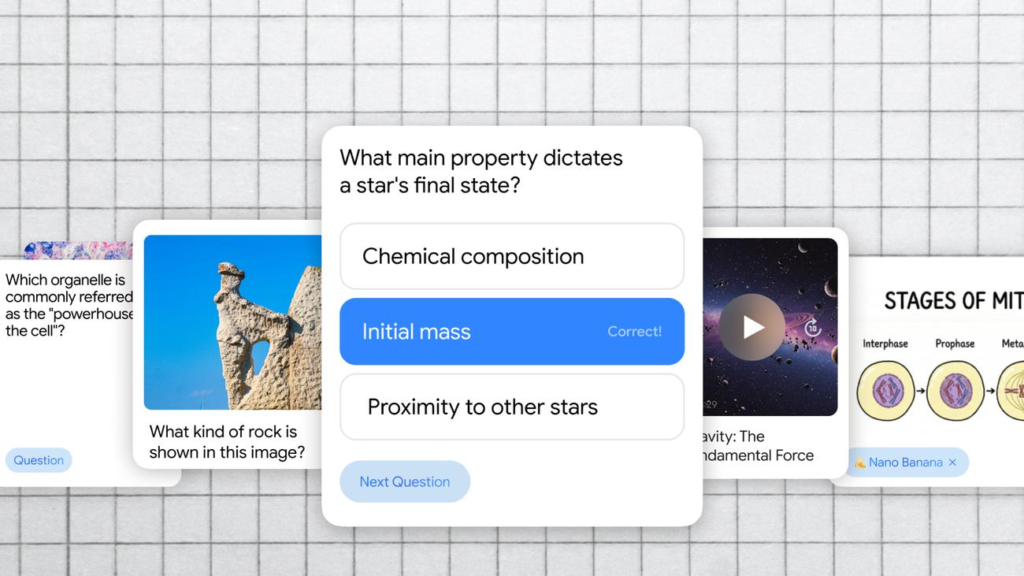
Generate study questions and flashcards from your materials to practise recall and identify topics that need more revision. Available formats and controls may vary.
3 NotebookLM prompts every student should use to study smarter
4. Visual learning resources
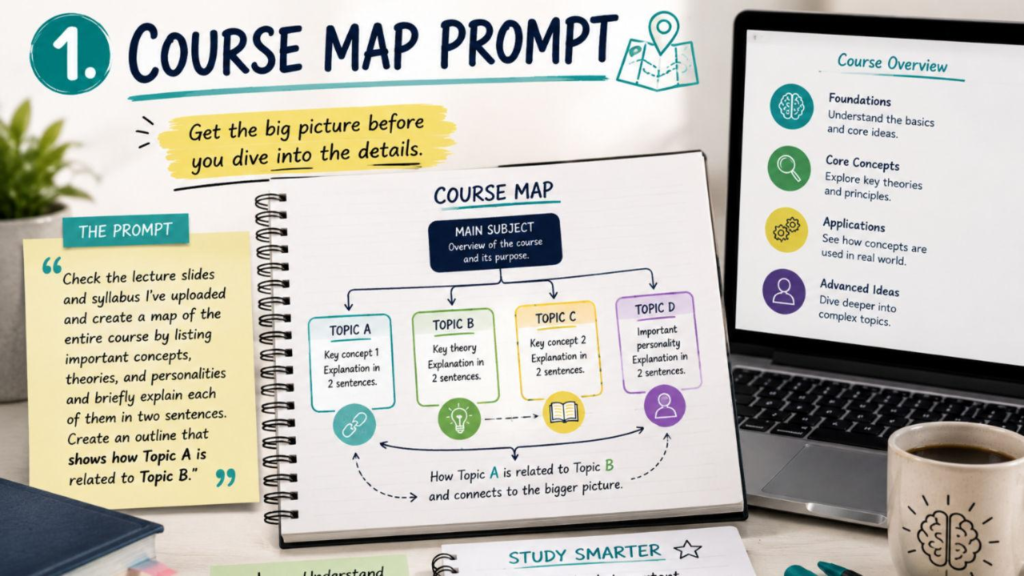
Depending on availability, create mind maps, infographics, video overviews, reports, and slide decks to organize or present information.
Πτυχιακή εργασία: οργάνωση, δομή, συγγραφή και παρουσίαση | idietera.gr
5. Multiple source types
Bring supported documents, web pages, YouTube videos, and other file types into a single notebook, making it easier to explore a topic across multiple references.
Google’s official documentation describes supported sources and its learning tools, including audio, video, flashcards, and quizzes. Check the current interface for availability in your account.
Gemini Notebook Help+2
4. How to Use NotebookLM: Step-by-Step Tutorial
If you are new to this AI tool, follow these steps to create your first notebook.
- Open the official website
Visit notebooklm.google.com and sign in with a Google Account that has access to the service. - Create a notebook
Select the option to create a new notebook. Give it a clear name, such as “Computer Networks Exam Preparation” or “SEO Research 2026.” - Add your sources
Upload relevant PDFs, add supported website or YouTube URLs, or import compatible files. Start with materials directly related to your goal. - Ask a specific question
Instead of typing “Explain everything,” try: “Summarize Chapter 2 in simple English. List the five most important concepts and provide citations.” - Check the citations
Open the cited passages and confirm that the explanation matches the original material. If something is unclear, ask a more focused follow-up question. - Generate useful outputs
Explore the available tools to create Audio Overviews, quizzes, flashcards, reports, or visual learning materials. - Review and save your work
Keep useful outputs with your notes and organize your notebooks by subject or project. Check sharing settings before sending a notebook to others.
Beginner tip: Start with one subject and a small set of high-quality sources. You will find it easier to assess the answers and improve your prompts before adding more material.
5. How to Upload PDFs, Documents, Websites, and Other Sources
NotebookLM supports a variety of source types. According to Google’s current help documentation, these include PDFs, Word documents, text and Markdown files, PowerPoint presentations, Google Docs, Google Slides, Google Sheets, images, audio files, ePub files, eligible Google Play Books content, web URLs, and public YouTube videos. Exact availability can change.
Gemini Notebook Help+1
Uploading a PDF or document
- Open your notebook.
- Select Add sources.
- Choose the appropriate file-upload option.
- Select your PDF or supported document.
- Wait for the source to finish importing, then ask questions about its content.
Adding a website
- Copy the URL of the relevant web page.
- Select the option to add a website or web URL.
- Paste the link and import the source.
- Check what information was imported before relying on it.
Some websites may not import completely, particularly when content is restricted or unavailable to the importer.
Adding a YouTube video
- Copy the URL of a public YouTube video.
- Add it as a source.
- Let the tool import the available transcript.
- Ask questions about the video’s explanations or key points.
YouTube importing generally relies on captions or transcripts rather than treating the entire video as a fully accessible audiovisual recording. Videos without suitable captions may fail to import.
Gemini Notebook Help
Supported source limits
Google’s help documentation currently describes a maximum of 500,000 words per source or 200 MB for a local upload, with a standard allowance of up to 50 sources per notebook for users without a paid plan. These limits and plan entitlements may change.
Gemini Notebook Help+1
If a source fails to upload, check its format, size, access permissions, and whether the document is copy-protected.
6. What Is NotebookLM Audio Overview?
NotebookLM Audio Overview is a feature that turns your source material into AI-generated spoken content. One popular format presents two AI hosts discussing ideas from your documents, making complicated material feel more like a conversation than a traditional lecture.
Google’s current documentation describes several formats, including Deep Dive, The Brief, Critique, and Debate. Availability and customization options depend on the product version and account.
Gemini Notebook Help
How to generate an Audio Overview
- Open a notebook containing your sources.
- Find Audio Overview in the Studio panel.
- Choose an available format and language.
- Add instructions about the topics you want covered.
- Generate the audio and listen to the result.
For example, a student could request an overview of the most important concepts in a chapter, while a researcher might focus on the findings and limitations of a paper.
Audio Overviews can also support multiple languages, including Hindi. However, AI-generated audio may contain factual inaccuracies, pronunciation issues, or other glitches, so check important information against the original sources.
Gemini Notebook Help
7. Benefits of NotebookLM for Different Users
NotebookLM becomes most useful when you connect its features to a specific task.
Railway Librarian 2026: Syllabus, Eligibility & Mock Tests
NotebookLM for students
- Summarize lecture notes and textbooks.
- Create practice quizzes and flashcards.
- Ask for simpler explanations of difficult topics.
- Turn revision material into audio discussions.
Example: Upload your semester syllabus and notes, then request a topic-wise revision guide.
When Your PI Goes Silent: Concrete Steps to Move Work For…
NotebookLM for research
- Compare findings across research papers.
- Identify themes, arguments, and differences.
- Find relevant quotations and source citations.
- Organize literature-review notes.
Example: Import five papers on renewable energy and ask for a comparison of their methods and conclusions.
AI School & Classroom Management Software | KiwiBee
NotebookLM for teachers
- Prepare lesson summaries.
- Create revision questions.
- Develop supporting explanations.
- Adapt source material for different learning needs.
Example: Create a beginner-friendly quiz from a lesson handout.
Best Books for SSC Stenographer 2026: CBT & Shorthand Prep | TrueJobs
NotebookLM for content creators
- Organize research for blog posts and videos.
- Extract useful points from interviews and reports.
- Compare claims across references.
- Build outlines and topic research notes.
Example: Import official product documentation and create a fact-checked outline for a technology tutorial.
For all four groups, the biggest advantage is having a focused workspace for source-based research rather than repeatedly searching through scattered documents.
8. NotebookLM vs ChatGPT: Key Differences
Both tools can help users work with information, but they have different strengths.
| Feature | NotebookLM / Gemini Notebook | ChatGPT |
| Main strength | Research and learning from organized sources | General-purpose assistance and problem-solving |
| Source-based questions | Answers grounded in notebook sources | Can use supplied files and other available tools |
| Citations | Links answers to relevant source passages | Citations depend on the tools and sources used |
| Audio learning | Offers Audio Overviews | Capabilities depend on available features |
| Creative writing | Best suited to tasks tied to notebook material | Flexible for brainstorming, writing, and revision |
| Best use | Studying, document analysis, and research organization | Writing, coding, planning, and broader tasks |
The distinction is not that one tool is always more accurate than the other. The best choice depends on the task, the information available, and how you verify the results.
Which should you choose?
- Choose NotebookLM when you want to investigate a defined collection of documents and trace answers to their sources.
- Choose ChatGPT when you need a flexible assistant for writing, coding, brainstorming, or tasks that extend beyond one collection of reference materials.
- Use both when appropriate: research a topic using reliable sources, then use a general-purpose assistant to develop your ideas or improve your presentation.
9. Advantages and Limitations of NotebookLM
Advantages
- Source-grounded answers: Citations help you check supporting material.
- Less manual searching: Ask questions instead of repeatedly scanning long documents.
- Flexible learning: Use text, audio, quizzes, and other available study formats.
- Multiple-source analysis: Explore connections between several documents.
- Organized research: Keep material grouped by subject or project.
Limitations
- AI errors: A cited answer can still be incomplete or misleading.
- Source restrictions: Some files, web pages, and videos may fail to import or provide incomplete information.
- Usage limits: Free and paid access levels have different allowances, and some limits depend on the feature.
- Dependence on source quality: Missing, outdated, or biased material can lead to weak conclusions.
- Privacy considerations: Sensitive information should not be uploaded without reviewing applicable data policies and permissions.
- Feature availability: New tools may roll out gradually or vary by account, device, and region.
Google explains that notebook content is not used directly to train its foundational AI models unless users choose to provide feedback. However, feedback may include prompts, uploads, sources, and generated outputs and can be reviewed to improve the service. Avoid including confidential information in feedback.
Gemini Notebook Help+1
10. Is Google NotebookLM Free?
Yes, NotebookLM has offered access without a paid AI plan, but users should distinguish basic access from higher usage allowances and premium features.
Google’s current documentation uses the Gemini Notebook name and describes standard limits for users without a paid plan, alongside higher limits for eligible Google AI subscriptions. Limits depend on the feature and may change.
Gemini Notebook Help+1
| Access level | What to expect |
| Without a paid AI plan | Standard access and usage limits |
| Google AI Plus | Higher usage allowances |
| Google AI Pro | Higher allowances than standard access |
| Google AI Ultra | Expanded access, with limits depending on the subscription |
These are broad comparisons, not a guarantee that every feature is included in every plan.
Before paying, check the current official usage limits and upgrade information and confirm that the features you need are available to your account.
For occasional study and basic document analysis, start with standard access and upgrade only if your actual usage requires it.
11. Tips to Get Better Results from NotebookLM
Using better prompts and better sources can make your research more productive.
1. Ask focused questions
Instead of asking, “Explain this PDF,” write:
“Summarize the main argument in this PDF, list five important points, and cite the relevant passages.”
2. Mention the intended audience
Try: “Explain this topic to a first-year computer science student with no prior knowledge.”
This helps tailor the complexity of the answer.
3. Compare specific sources
Ask: “Compare the conclusions of Paper A and Paper B. Explain where they agree, where they differ, and which evidence supports each conclusion.”
4. Request a structured response
Ask for a table, numbered list, glossary, revision guide, or question-and-answer set when that format will make the material easier to use.
5. Verify important claims
Open the citations, inspect the original passages, and check whether the source supports the complete claim.
6. Keep notebooks focused
Create separate notebooks for different subjects or projects. This makes it easier to select relevant sources and avoid mixing unrelated material.
7. Use Audio Overview for revision
Listen to a generated discussion, then test your understanding with questions or flashcards. Listening should complement active recall, not replace it.
8. Review source permissions and privacy
Use materials you are authorized to upload and share. Read the applicable privacy terms before importing confidential research, company documents, or personal information.
12. Frequently Asked Questions (FAQs)
1. What is Google NotebookLM used for?
Google NotebookLM is an AI research and learning tool used to summarize documents, answer questions about sources, organize research, and create learning resources such as audio discussions and quizzes.
2. Is NotebookLM the same as Gemini Notebook?
Google announced on July 16, 2026, that NotebookLM was being renamed Gemini Notebook. The product continues its research-focused role while integrating more closely with Google’s wider AI ecosystem.
blog.google
3. Is NotebookLM free to use?
Standard access is available without a paid AI plan, subject to usage limits. Paid Google AI plans offer higher allowances, and current entitlements should be checked on Google’s official website.
Gemini Notebook Help
4. Can NotebookLM summarize PDF files?
Yes. Supported PDFs can be imported as sources. You can then request summaries, explanations, key points, or comparisons based on their content.
5. Can NotebookLM use YouTube videos?
Yes, it supports public YouTube URLs when suitable transcripts or captions are available. Importing a video generally brings in its transcript rather than the entire audiovisual experience.
Gemini Notebook Help
6. What is NotebookLM Audio Overview?
Audio Overview converts notebook source material into AI-generated spoken content. Depending on the available format, it may produce a conversation between two hosts or a shorter spoken summary.
7. Is NotebookLM useful for students?
Yes. Students can use it to explain concepts, summarize notes, compare reference materials, generate practice questions, and revise using Audio Overviews. They should still check answers against course materials and learn the underlying concepts.
8. Can NotebookLM write blog posts?
It can help organize research, identify key points, and develop an outline based on your sources. You can use those findings to write a blog post, but original analysis, editorial judgment, fact-checking, and SEO improvements remain important.
9. Is NotebookLM always accurate?
No. It can make mistakes, omit relevant information, or misinterpret a source. Citations make verification easier but do not eliminate the need to check the original material.
10. Can I use NotebookLM on my phone?
Google provides mobile access, but some features may differ between mobile and desktop. Check the current official help documentation for your device and account.
Gemini Notebook Help+1
11. Can NotebookLM replace Google Search?
No. NotebookLM is especially useful for analyzing a defined set of sources. Google Search remains useful for discovering web pages and finding information beyond your existing research collection.
12. Is NotebookLM safe for private documents?
Its privacy protections depend on the account type and applicable terms. Review Google’s privacy documentation, avoid uploading information you are not authorized to share, and be especially careful with confidential or sensitive material.
Gemini Notebook Help+1
13. Conclusion: Is Google NotebookLM Worth Using in 2026?
Google NotebookLM is a practical AI tool for people who want to learn from documents, organize research, and understand complex information more efficiently. Its source-grounded chat, Audio Overviews, and learning resources make it useful for students, researchers, teachers, and content creators.
The most effective approach is to start with reliable sources, ask clear questions, inspect citations, and use AI-generated summaries as a starting point rather than a replacement for critical thinking.
Google’s transition from NotebookLM to Gemini Notebook also makes it important to check the current product name, available features, and usage limits before following older tutorials.
Our recommendation: If you regularly work with PDFs, lecture notes, research papers, or other reference materials, try the free access first. Test it on a real task, check the quality of its answers, and decide whether its features fit your workflow.
Visit the official website: Gemini Notebook.
SEO publishing checklist
Before publishing the article, review these final on-page SEO elements.
Pre-publication checklist
0 of 6
Use one H1 heading
Keep the main article title as the only H1.
Add the meta description
Use the suggested description in your CMS SEO settings.
Add the featured image and ALT text
Use a relevant, descriptive image without keyword stuffing.
Add internal links
Link to relevant articles already published on your website.
Verify official product details
Recheck the product name, feature availability, and current limits before publication.
Preview mobile readability
Check paragraph length, heading hierarchy, tables, and image loading.
Suggested internal blog topics
Use these as internal-link opportunities when the related articles are available on your website.
- Best AI Tools for Students in 2026 — link from the student-benefits section.
- How to Use Google Gemini: A Beginner’s Guide — link from the product comparison and tutorial sections.
- How to Write SEO-Friendly Blog Posts with AI — link from the content-creator section.
Three reliable external sources
These official Google resources support the product information discussed in the article.
- Google’s NotebookLLM-to-Gemini Notebook announcement — product name and ecosystem changes.
- Google’s source upload and discovery guide — supported source types and import instructions.
- Google’s Audio Overview guide — audio formats, customization, and limitations.
Final SEO note: This article is structured around the reader’s search intent and includes relevant keywords, useful headings, practical examples, and official references. These are good on-page SEO practices, but rankings depend on many additional factors, including competition, site quality, originality, page experience, and the strength of your overall content strategy.