
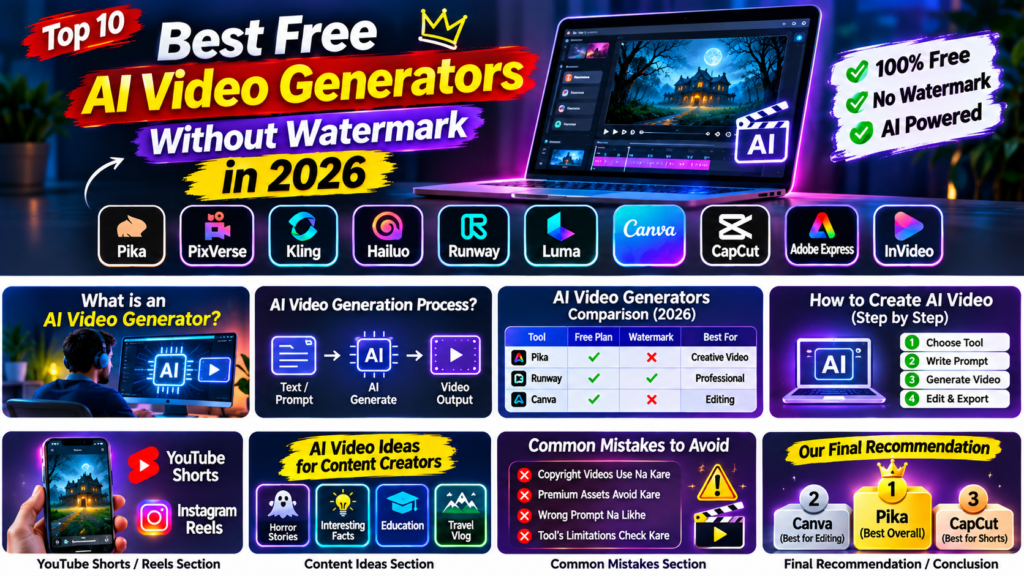
AI video generation has completely changed the way people create videos. Ab aap bina expensive camera, professional editing skills ya costly software ke bhi AI ki help se amazing videos create kar sakte ho.
Chahe aap YouTube Shorts banana chahte ho, Instagram Reels create karna chahte ho, horror stories ke liye cinematic scenes generate karna chahte ho ya apne business ke liye promotional videos banana chahte ho, AI video generators aapki help kar sakte hain.
Lekin ek problem hai. Internet par bahut saari websites free AI video generation ka claim karti hain, lekin jab aap video download karte ho to usmein watermark aa jata hai. Kuch websites sirf limited credits deti hain, jabki kuch watermark remove karne ke liye paid subscription maangti hain.
Isliye is article mein hum explore karenge Best Free AI Video Generators Without Watermark in 2026. Hum different tools ke features, free plans, watermark policies, limitations aur practical uses ko compare karenge.
Agar aap zero budget mein AI videos create karna chahte ho, to ye guide aapke liye useful ho sakti hai.
Our goal: Aise AI video tools identify karna jo genuinely useful hon aur jinke free features aur watermark restrictions ko clearly samjhaya ja sake.
Quick Comparison: Best Free AI Video Generators
| AI Tool | Main Features | Free Access | Watermark Status |
| Pika | Text-to-video, image-to-video | Limited | Watermark-free export listed |
| PixVerse | AI video generation | Limited credits | Free exports may have watermark |
| Kling AI | Image-to-video, text-to-video | Limited access | Free exports may have watermark |
| Hailuo AI | Cinematic AI videos | Limited credits | Free downloads include watermark |
| Runway | Advanced AI video generation | One-time credits | Free exports have watermark |
| Luma Dream Machine | Cinematic video generation | Limited access | Free outputs have watermark |
| Canva | Video editing and AI features | Free plan | Free assets can export cleanly |
| CapCut | Video editing and AI features | Free plan | Depends on workflow |
| Adobe Express | Video creation and editing | Free plan | Eligible exports are watermark-free |
| InVideo | AI-assisted video creation | Limited AI credits | Depends on workflow |
Important: Free AI video generation and free watermark-free downloads are two different things. Some platforms allow free generation but add watermarks to exported videos. Always check the current pricing and export policy before creating your final video.
1. Pika – Best for Creative AI Video Generation
Official Website: https://pika.art/
Pika is an AI-powered video generation platform that helps users transform text prompts and images into creative video clips.
Aap agar normal images ko animated scenes mein convert karna chahte ho ya creative visual effects create karna chahte ho, to Pika explore kar sakte ho.
Main Features
- Text-to-video generation.
- Image-to-video generation.
- Creative video effects.
- AI-powered visual transformations.
- Short video creation.
How Can Students and Creators Use Pika?
Aap ek image upload karke prompt de sakte ho:
“Create a cinematic scene of a mysterious abandoned house at midnight, with moving fog, flickering lights and a slow camera movement.”
AI aapke prompt ke according video generate karne ki koshish karega.
Is Pika Free?
Pika offers a free account, but its current Free plan lists zero included monthly credits. Additional credits may need to be purchased.
Does It Add a Watermark?
Pika currently lists watermark-free downloads on its plans, including the Free plan.
Limitations:
- Free monthly generation credits are not included.
- Additional generations may require purchased credits.
- Commercial-use rights are restricted on the Free plan.
Best For: Creative video experiments, image animation and short cinematic scenes.
2. PixVerse – Best for Text-to-Video Experiments
Official Website: https://app.pixverse.ai/
PixVerse is a popular AI video generation platform that allows users to create videos from text prompts and images.
Agar aapko animated scenes, fantasy videos, cinematic visuals ya social media content banana hai, to PixVerse ek interesting option ho sakta hai.
Main Features
- Text-to-video generation.
- Image-to-video animation.
- Different visual styles.
- AI-powered video effects.
- Creative scene generation.
How to Use PixVerse?
- Official website open karein.
- Account create karein.
- Text prompt enter karein.
- Available model aur settings select karein.
- Generate button par click karein.
- Video preview karke download options check karein.
Is PixVerse Free?
PixVerse provides limited free credits, subject to its current plan and generation settings.
Does It Add a Watermark?
Watermark-free downloads are listed as a paid-plan benefit. Free exports may contain a watermark.
Limitations:
- Limited free credits.
- Generation quality depends on the selected model.
- Watermark-free exports may require a paid subscription.
Best For: Beginners who want to experiment with AI-generated videos.
3. Kling AI – Best for Image-to-Video Generation
Official Website: https://kling.ai/
Kling AI is an advanced AI video generation platform. It is particularly useful when you want to convert static images into moving video scenes.
Agar aapke paas kisi character ki image hai aur aap us character ko walk karte hue, running karte hue ya kisi scene mein action perform karte hue dikhana chahte ho, to Kling AI try kar sakte ho.
Main Features
- Image-to-video generation.
- Text-to-video generation.
- Motion control options.
- Cinematic scene creation.
- Character reference features, depending on model.
How Can You Use Kling AI?
Suppose aap horror video bana rahe ho aur aapke paas ek old haunted house ki image hai.
Prompt:
“Animate this image into a cinematic horror scene. Add moving fog, slowly flickering lights and a gentle forward camera movement. Maintain the original house structure.”
Is Kling AI Free?
Limited free access may be available, depending on current credits and account eligibility.
Does It Add a Watermark?
Free generations may contain a watermark. Watermark-free downloads are associated with eligible paid plans.
Limitations:
- Limited free generation credits.
- Generation time can vary.
- Character consistency is not always perfect.
Best For: Horror videos, cinematic scenes and image animation.
4. Hailuo AI – Best for Cinematic AI Videos
Official Website: https://hailuoai.video/
Hailuo AI is designed to generate cinematic videos from text prompts and images.
Agar aapko realistic-looking scenes, dramatic lighting aur moving camera effects chahiye, to Hailuo AI explore kar sakte ho.
Main Features
- Text-to-video.
- Image-to-video.
- Cinematic camera movement.
- AI-generated visual scenes.
- Short video generation.
Example Prompt
“Create a cinematic night scene showing an empty railway station during heavy rain. Add realistic rain movement, fog, flickering station lights and slow camera movement.”
Is Hailuo AI Free?
Limited free access may be available, subject to credits and platform policies.
Does It Add a Watermark?
Free-user downloads include a watermark under the published terms. Paid plans offer watermark-free downloads.
Limitations:
- Free credits are limited.
- Generation speed can vary.
- Video duration and resolution depend on the model and plan.
Best For: Horror storytelling, cinematic backgrounds and dramatic short videos.
5. Runway – Best for Professional AI Video Experiments
Official Website: https://runwayml.com/
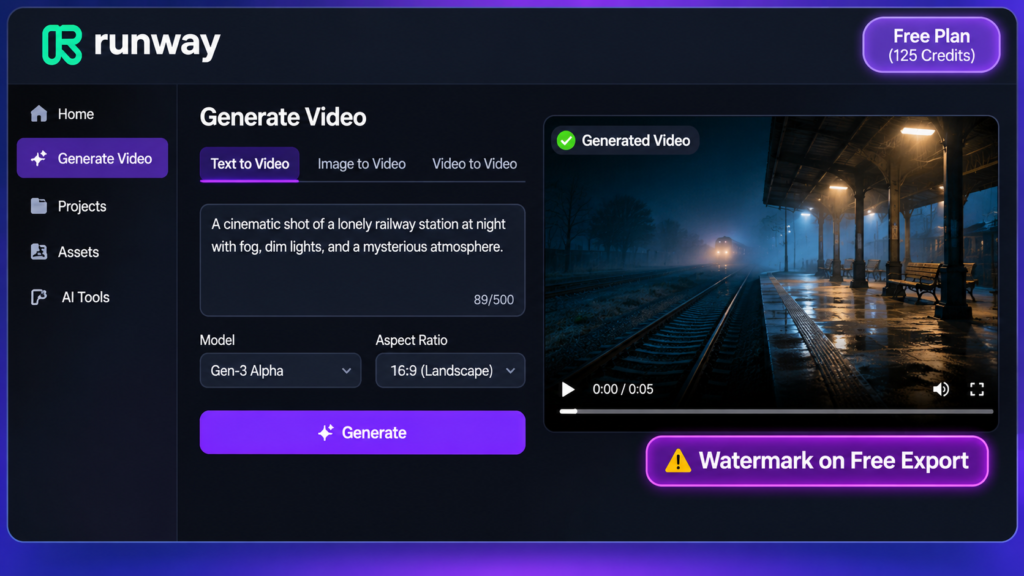
Runway is an AI-powered creative platform that offers video generation and editing workflows.
It is useful for creators who want to experiment with advanced AI video generation and visual storytelling.
Main Features
- AI video generation.
- Image-to-video workflows.
- Creative editing tools.
- Different generation models.
- Browser-based creative workflow.
How to Use Runway?
- Visit the official website.
- Create an account.
- Open the available video generation tool.
- Enter your prompt or upload an image.
- Generate and preview the result.
Is Runway Free?
Runway offers a Free plan with 125 one-time credits according to its published plan information.
Does It Add a Watermark?
Yes, videos generated on the Free plan include a Runway watermark.
Limitations:
- One-time free credits.
- Free exports contain a watermark.
- Additional generations may require a paid plan.
Best For: Testing advanced AI video generation features.
6. Luma Dream Machine – Best for Cinematic Visual Experiments
Official Website: https://lumalabs.ai/dream-machine
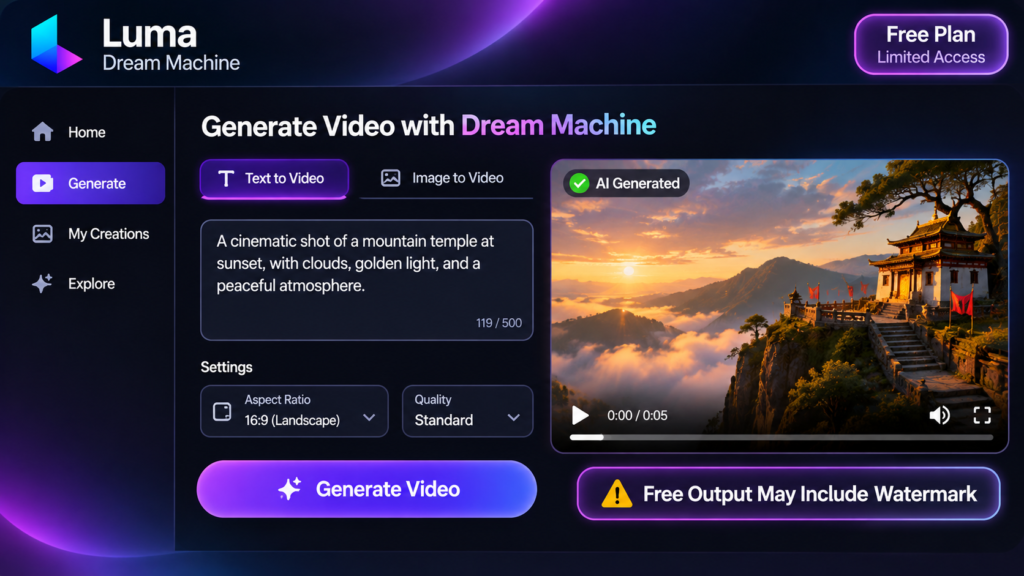
Luma Dream Machine is an AI video generation platform that helps creators turn prompts and images into moving visual scenes.
It can be useful for storytelling, cinematic backgrounds and creative experiments.
Main Features
- AI video generation.
- Image-based video creation.
- Cinematic visual effects.
- Different generation options.
- Creative scene exploration.
Is Luma Dream Machine Free?
Limited free access is available, depending on the current plan.
Does It Add a Watermark?
Free and Lite generations have watermark restrictions under Luma’s published licensing guidance.
Limitations:
- Limited free generation.
- Watermark restrictions.
- Commercial usage may require an eligible paid plan.
Best For: Creators who want to experiment with cinematic AI-generated scenes.
7. Canva – Best for Watermark-Free Video Editing
Official Website: https://www.canva.com/video-editor/
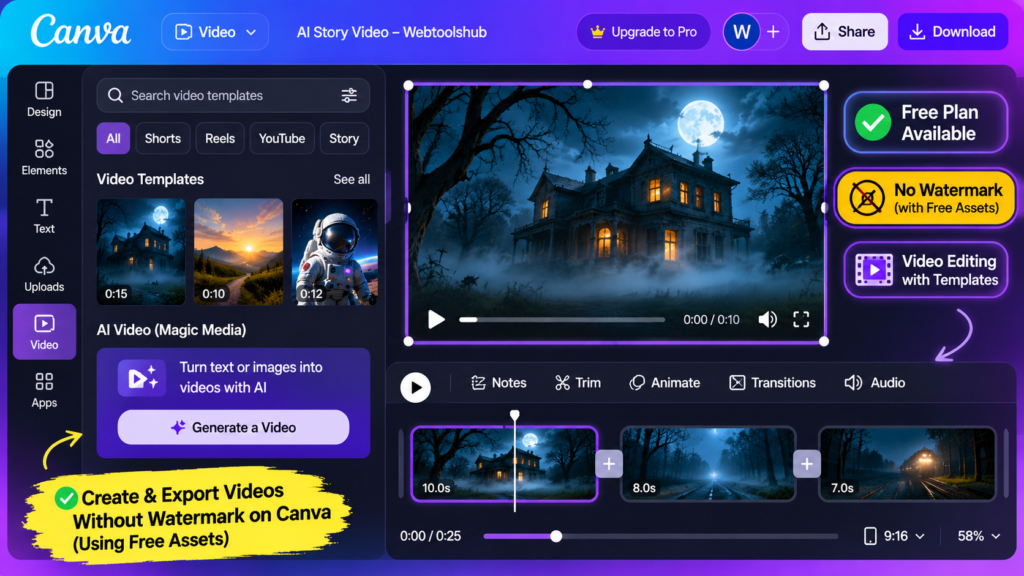
Canva is not just a graphic design platform. It also offers video editing features that can help beginners create social media videos.
Aap AI-generated clips ko Canva mein import karke captions, text, background elements aur transitions add kar sakte ho.
Main Features
- Online video editor.
- Social media video templates.
- Text and animation effects.
- Video resizing.
- MP4 export.
How to Use Canva?
- Canva website open karein.
- Free account create karein.
- Video project select karein.
- Apne video clips upload karein.
- Text, captions aur transitions add karein.
- MP4 format mein export karein.
Is Canva Free?
Yes, Canva offers a free plan.
Does It Add a Watermark?
Videos created with eligible free assets can be exported without a watermark. Premium assets may require payment.
Limitations:
- Some templates are paid.
- Some AI features require a paid plan.
- Account creation is generally required.
Best For: YouTube Shorts, Instagram Reels and social media editing.
8. CapCut – Best for YouTube Shorts and Instagram Reels
Official Website: https://www.capcut.com/
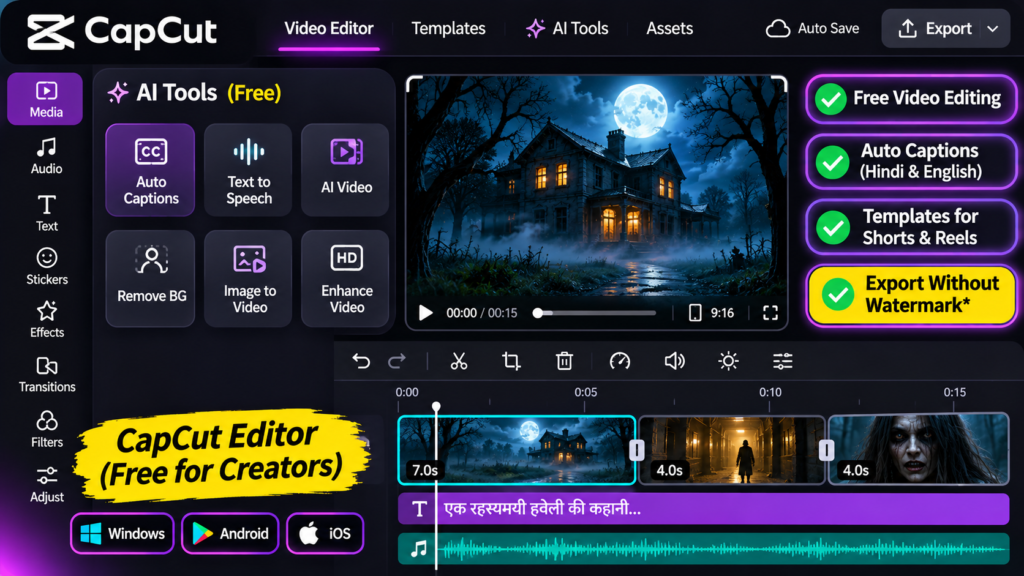
CapCut is a popular video editing platform that offers basic editing tools and AI-assisted features.
Agar aap AI-generated videos create karte ho aur unmein Hindi voice-over, subtitles, background music aur transitions add karna chahte ho, to CapCut useful ho sakta hai.
Main Features
- Video editing timeline.
- Automatic captions.
- Text and transitions.
- Audio editing.
- AI-assisted editing features.
- Vertical video editing.
How to Use CapCut?
- CapCut open karein.
- New project create karein.
- AI-generated clips import karein.
- Hindi narration add karein.
- Captions aur background music add karein.
- Export settings check karke video save karein.
Is CapCut Free?
Yes, basic editing features are available for free.
Does It Add a Watermark?
Watermark-free exports are possible in eligible workflows. Some templates, premium assets and features may introduce restrictions.
Limitations:
- Some features require CapCut Pro.
- Availability varies by region and platform.
- Some AI features have usage limits.
Best For: Shorts, Reels and social media content creation.
9. Adobe Express – Best for Simple Video Creation
Official Website: https://www.adobe.com/express/create/video
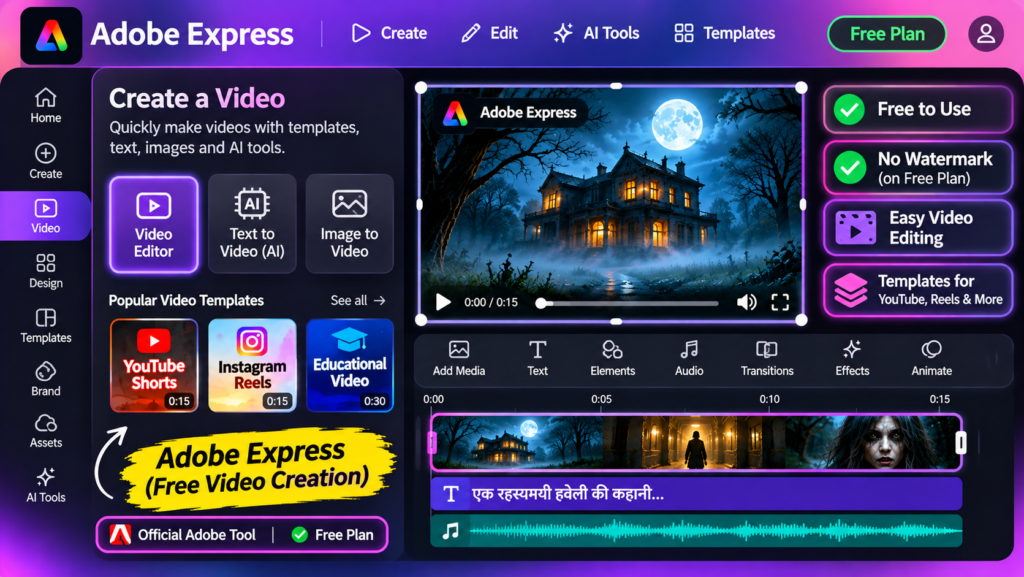
Adobe Express is a browser-based design and video editing tool that helps users create professional-looking content.
Aap ise promotional videos, educational content, social media posts aur simple video projects ke liye use kar sakte ho.
Main Features
- Video editing.
- Social media templates.
- Text and design elements.
- Video resizing.
- MP4 export.
Is Adobe Express Free?
Yes, Adobe offers a free plan with basic video editing features.
Does It Add a Watermark?
Eligible videos created in Adobe Express can be exported without a watermark.
Limitations:
- Advanced features may require a paid plan.
- Account creation may be required.
- Not all AI video-generation features are free.
Best For: Beginners and creators who need simple video editing.
10. InVideo – Best for AI-Assisted Video Editing
Official Website: https://invideo.io/
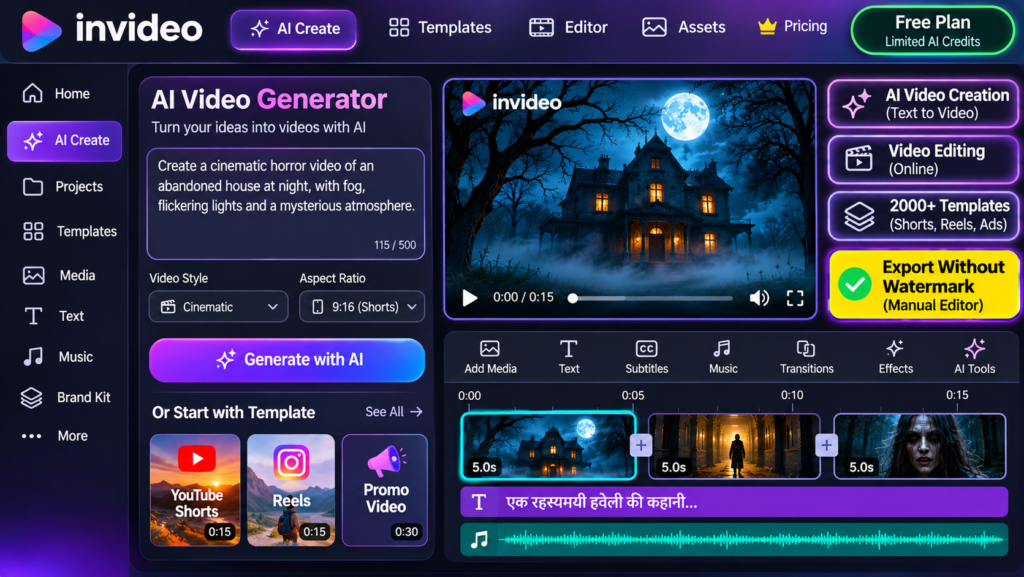
InVideo provides browser-based video editing and AI-assisted video creation workflows.
Aap apne video clips ko arrange karke titles, text, narration aur other elements add kar sakte ho.
Main Features
- Online video editing.
- AI-assisted creation.
- Video templates.
- Timeline editing.
- Export options.
Is InVideo Free?
InVideo offers limited free AI access. Its AI-generation features consume credits, while manual editing has separate capabilities.
Does It Add a Watermark?
Manual editor exports can be watermark-free. AI-generated workflows may have different restrictions.
Limitations:
- Limited AI credits.
- Some features require payment.
- Account creation is generally required.
Best For: Beginners who want to combine AI-assisted creation with manual editing.
Free AI Video Generator vs Free Watermark-Free Export
Bahut saare beginners ek common mistake karte hain. Woh samajhte hain ki agar koi website free video generation offer kar rahi hai, to uska download bhi automatically watermark-free hoga.
Lekin aisa zaroori nahi hai.
Free video generation ka matlab hai ki aap limited credits ke through video create kar sakte ho.
Free download ka matlab hai ki aap generated video ko apne device par save kar sakte ho.
Watermark-free export ka matlab hai ki downloaded video mein platform ka unwanted logo ya branding nahi hogi.
Ye teen alag features hain. Kisi bhi AI video generator ko select karne se pehle in teeno ko check karna zaroori hai.
Checklist Before Using an AI Video Generator
- Can I generate videos without paying?
- Can I download my generated video?
- Does the free export contain a watermark?
- Are free credits renewable?
- Is the desired video resolution available?
- Does the free plan allow commercial use?
- Do I need a paid subscription for clean exports?
Which AI Video Generator Is Best for Your Needs?
| Requirement | Recommended Tool |
| Watermark-free AI export | Pika |
| Text-to-video experiments | PixVerse |
| Image-to-video generation | Kling AI |
| Cinematic horror scenes | Hailuo AI |
| Advanced AI video experiments | Runway |
| Cinematic visual experiments | Luma Dream Machine |
| Free video editing | Canva |
| YouTube Shorts editing | CapCut |
| Simple video creation | Adobe Express |
| AI-assisted editing | InVideo |
Remember that recommendations depend on the current free plan and export policy. Always verify the official terms before using a tool for a complete project.
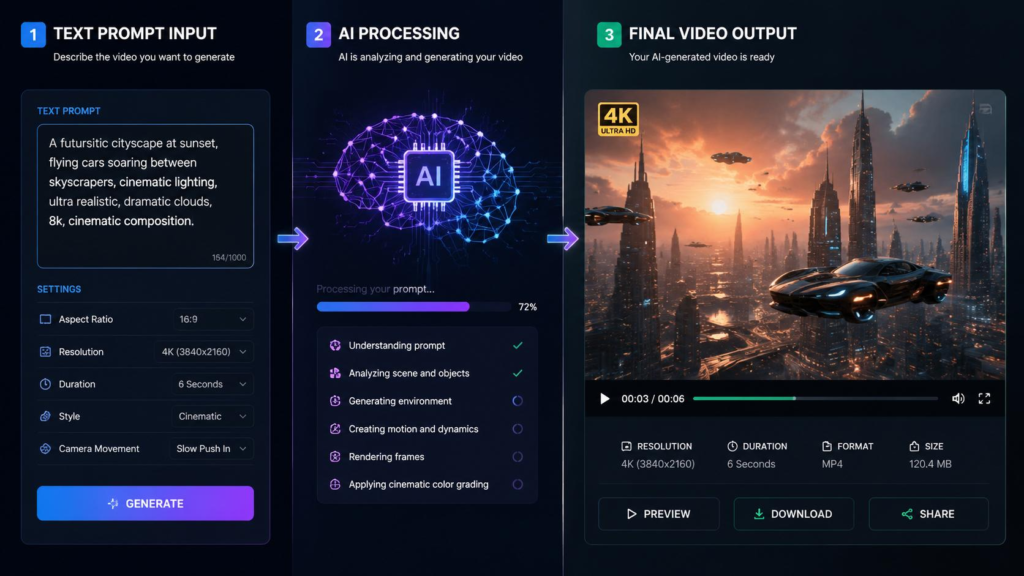
How to Create AI Videos Without a Watermark
Agar aap beginner ho aur AI video creation start karna chahte ho, to ye simple workflow follow kar sakte ho.
Step 1: Choose Your AI Video Generator
Sabse pehle apni requirement ke according tool choose karo. Agar aap image animate karna chahte ho to image-to-video feature check karo. Agar text se video banana hai to text-to-video support dekho.
Step 2: Write a Detailed Prompt
AI video generation mein prompt bahut important hota hai.
Example:
“Create a cinematic horror scene of an abandoned railway station at midnight. Thick fog covers the railway tracks. A single flickering light is visible in the distance. The camera slowly moves forward. Realistic lighting, atmospheric environment, vertical 9:16 video.”
Step 3: Generate Your Video
Prompt enter karne ke baad available settings select karo aur video generate karo. Generation ke baad result preview karo.
Step 4: Check Watermark and Download Restrictions
Final video download karne se pehle check karo ki free plan watermark-free export allow karta hai ya nahi.
Step 5: Edit Your Video
Canva, CapCut ya Adobe Express jaise editors mein apna footage import karo. Narration, captions, music aur transitions add karo.
Step 6: Export and Review
Final video ko MP4 format mein export karo. Video ko complete play karke check karo ki watermark, unwanted branding ya audio problems to nahi hain.
Best AI Video Generator for YouTube Shorts
Agar aap YouTube Shorts ya Instagram Reels create karte ho, to sirf video generation quality par focus mat karo. Aapko aisa workflow chahiye jisme multiple scenes ko combine karna easy ho.
YouTube Shorts ke liye important features:
- Vertical 9:16 video format.
- Good visual quality.
- Consistent characters.
- Image-to-video support.
- Text-to-video support.
- Watermark-free export.
- Easy editing and caption support.
AI Video Ideas for Content Creators
1. Horror Story Videos
AI se abandoned houses, haunted railway stations, mysterious hotels aur dark forests ke cinematic scenes generate kar sakte ho.
2. Interesting Facts Videos
Science, space, history aur animals ke interesting facts ko AI-generated visuals ke through explain kar sakte ho.
3. Educational Videos
Students ke liye science experiments, historical events aur educational concepts ko visual format mein present kar sakte ho.
4. Product Promotional Videos
Product images ko animate karke short promotional videos create kar sakte ho. Product ke features aur claims ko accurately represent karna zaroori hai.
Common Mistakes to Avoid
- Free credits ko unlimited samajhna.
- Video export karne se pehle watermark policy check na karna.
- Free editing aur free AI generation ko same samajhna.
- Commercial-use restrictions ignore karna.
- Bina proper prompt ke multiple generations karna.
- Video resolution aur quality check na karna.
- Purane YouTube tutorials par completely depend rehna.
AI video tools frequently apne plans, credits aur features update karte hain. Isliye latest information ke liye official websites check karna best rahega.
Frequently Asked Questions (FAQs)
1. What is the best free AI video generator without watermark in 2026?
Pika currently lists watermark-free downloads, but its Free plan does not include monthly generation credits. Canva and Adobe Express are useful for watermark-free editing with eligible free assets. The best choice depends on whether you need AI generation or video editing.
2. Can I create AI videos without paying?
Yes, some AI video platforms offer limited free credits or free access. However, generation limits, download restrictions and watermark policies vary.
3. Which AI video generator offers free downloads?
Pika currently lists watermark-free downloads on its Free plan, but included monthly credits are zero. Canva and Adobe Express also provide clean exports when eligible free assets are used.
4. Is there a free text-to-video AI without watermark?
Some platforms offer limited free generation, but watermark-free downloading is not guaranteed. Check the official plan details before generating your video.
5. Which AI video generator is best for YouTube Shorts?
Kling AI, PixVerse and Pika can be used to experiment with generated scenes. CapCut and Canva are useful for editing and assembling vertical videos.
6. Can I use AI-generated videos commercially?
Commercial usage depends on the platform, subscription and licence. Some free plans allow only personal use. Always read the official terms before publishing monetized or promotional content.
7. Do free AI video generators require signup?
Most hosted AI video generators require users to create an account before accessing generation credits. Requirements vary by platform.
8. Is there an unlimited free AI video generator?
Most hosted AI video generators have usage limits or credit systems. Local open-source models are another option, but they require compatible hardware and technical setup.
9. Which AI video generator is best for image-to-video?
Kling AI, PixVerse and Hailuo AI are worth exploring for image-to-video generation. Compare their free credits, output quality and watermark policies.
10. How can I make AI videos without a watermark?
Choose a platform that officially supports watermark-free downloads on your current plan. Use eligible assets and verify the final export before publishing.
Final Verdict: Which AI Video Generator Should You Try?
AI video generation is becoming more accessible, but choosing a genuinely free tool without a watermark is still challenging.
Here are our recommendations:
- Pika: Worth considering for watermark-free exports, but it currently has no included monthly free credits.
- PixVerse: Useful for experimenting with text-to-video generation.
- Kling AI: Good option for image-to-video experiments.
- Hailuo AI: Useful for cinematic scenes, but free downloads include a watermark.
- Runway: Good for exploring advanced AI video generation, but free exports contain a watermark.
- Canva: Useful for clean video editing with free assets.
- CapCut: A practical option for YouTube Shorts and Reels editing.
- Adobe Express: Useful for simple video creation and editing.
If your budget is zero, start with the free features, test one short video and verify the final export before building a complete project.
Remember, the best tool is not necessarily the one that offers the most features. It is the one that fits your requirements, provides acceptable quality and lets you use the final video under its actual licence.
Want to discover more useful AI tools? Explore Webtoolshub for practical guides, free online tools and technology resources.
SEO SETTINGS FOR WEBTOOLSHUB
SEO Title:
Best Free AI Video Generators Without Watermark
Meta Description:
Discover the best free AI video generators without watermark in 2026. Compare free credits, video quality, export limits and tools for Shorts.
URL Slug:
best-free-ai-video-generator-without-watermark
Primary Keyword:
Best free AI video generator without watermark
Secondary Keywords:
- Free AI video generator without watermark
- AI video generator free no watermark
- Best free AI video maker 2026
- Free text-to-video AI generator
- AI video generator without paying
- Free AI video creation websites
- AI video generator without subscription
- Free AI video generator online
- Text-to-video AI free
- Free AI video tools for YouTube
- AI video generator without login
- AI video generator for beginners
10 Long-Tail Keywords:
- Best AI video generator without watermark for YouTube
- Free AI video generator for beginners
- Create AI videos online for free
- Best free AI video generator for Instagram Reels
- Free AI video generator for YouTube Shorts
- AI video generator with free downloads
- Text-to-video generator without watermark free
- Best free AI video tools for content creators
- AI video generator without watermark and subscription
- Free image-to-video AI generator for social media
Suggested Internal Links:
- Best free AI image generators
- Best free AI tools for YouTube Shorts
- Free AI voice generators without watermark
- Best free video editing software
- How to create AI horror videos for YouTube
Image Alt Text Suggestions:
- Best free AI video generators without watermark in 2026
- AI-generated cinematic horror scene for short videos
- Free video editing workflow for AI-generated content
- AI video tools for creating vertical YouTube Shorts
- Best AI video generation tools for content creators
Suggested Tags:
AI Video Generator, Free AI Video Tools, AI Video Generator Without Watermark, Text To Video AI, Image To Video AI, Free Video Maker, AI Tools 2026, YouTube Shorts Tools, AI Video Editing, Free AI Websites, Content Creation Tools, Webtoolshub
Featured Image Concept:
Create a professional 1200 × 630 pixel banner featuring a laptop displaying an AI-generated cinematic video, with floating AI, video and editing icons. Use a modern dark blue and purple technology theme.
Banner headline: “BEST FREE AI VIDEO GENERATORS”
Subtitle: “WITHOUT WATERMARK | 2026”
Add the Webtoolshub brand logo in a corner.
Editorial Note: Free plans, credit limits, watermark rules and commercial-use rights can change. Review official pricing and terms before publishing or updating this guide.